Fix buffering issues in your iptv player app today
An iptv player is a software application that reads M3U playlists or Xtream Codes streams and plays live TV channels, movies, and series on your device. If yours keeps buffering, the fix usually lives in your network settings, stream cache size, or the player app itself.
Picture this: it’s a Friday evening, you’ve finally settled onto the couch, your iptv player is open, and the match kicks off. Then the wheel starts spinning. Three seconds. Ten seconds. Half a minute. You restart the app, it buffers again, and now you’re on Reddit at 9 PM trying to figure out whether to blame your router, your provider, or the app. I’ve been there, more than once. This guide is the one I wish I’d had on those nights.
Table of Contents
- What an iptv player actually does
- The real reasons your stream keeps buffering
- How to fix buffering in your iptv player step by step
- Choosing the right iptv player for your device
- What your subscription provider has to do with it
- Common mistakes people make with iptv player setup
- Frequently Asked Questions
- Conclusion
What an iptv player actually does
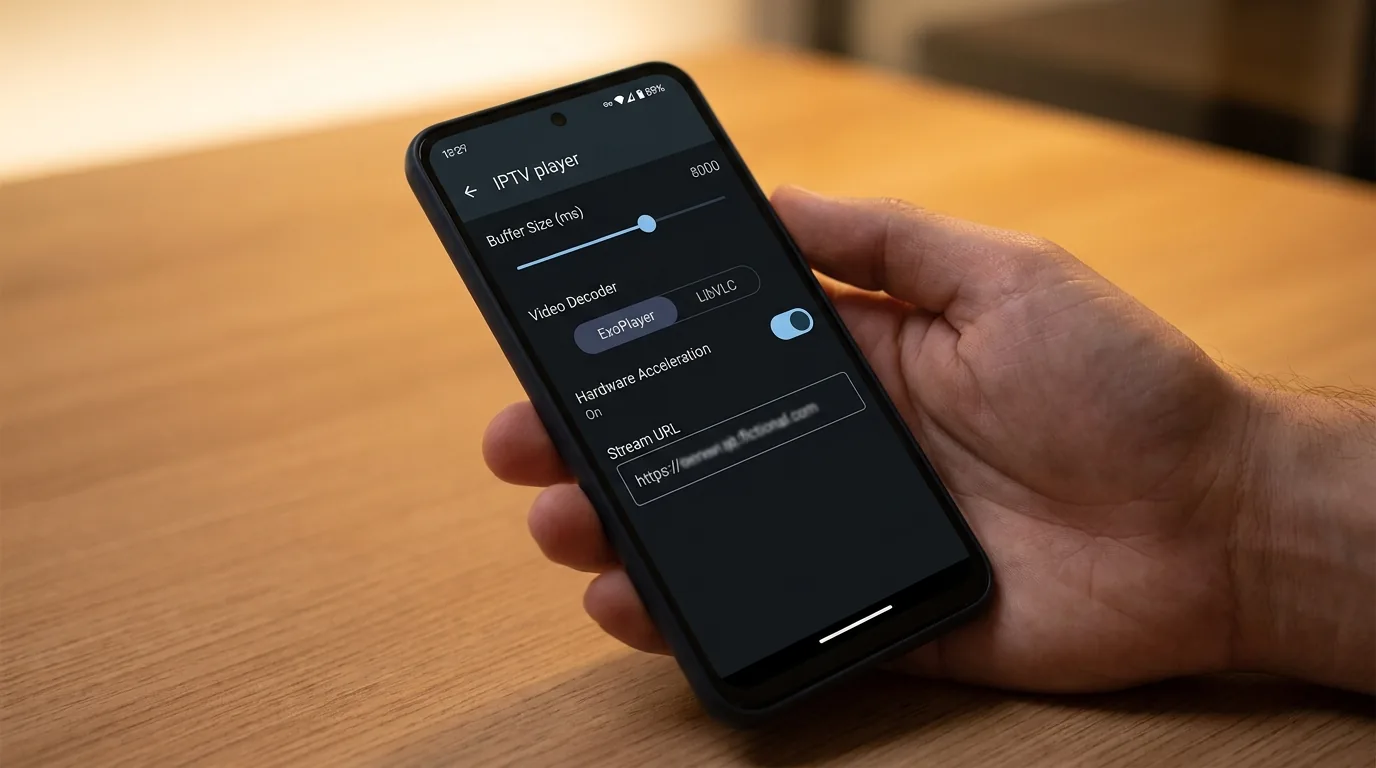
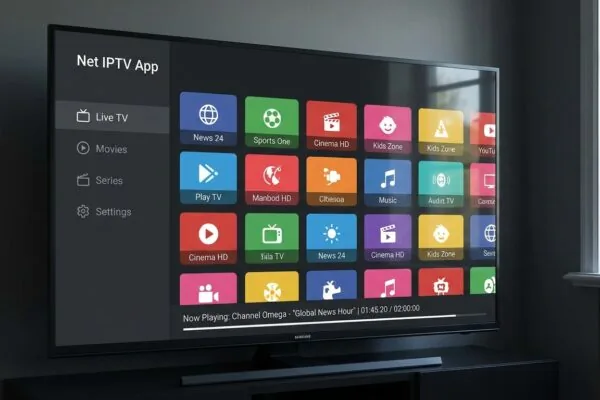
Most people think of their iptv player as “the app that shows TV.” That’s true but incomplete. The app is really just a container. It takes a URL or a playlist file (usually an M3U or M3U8 file), parses the channel list inside it, and then connects to a media server to pull a video stream in real time. It doesn’t store channels. It doesn’t generate content. It’s a smart reader and a video renderer, nothing more.
This distinction matters a lot when you’re troubleshooting. If your stream buffers, the problem could be in the player’s own video decoder, in the playlist it’s reading, in the server delivering the stream, or in your home network. Four completely different failure points, all producing the same spinning wheel on your screen.
The main playlist formats you’ll encounter
Understanding the formats helps you pick the right player and diagnose problems faster.
- M3U / M3U8: A plain-text file listing channel URLs. It’s the most universal format and every serious iptv player supports it.
- Xtream Codes API: A login-based system (username, password, server URL) that the player uses to fetch channels dynamically. More flexible than a static M3U file.
- Stalker / MAC Portal: Used by MAG boxes and some software players. Requires a MAC address tied to your subscription.
- HLS (HTTP Live Streaming): The underlying protocol behind most M3U8 streams. Your player handles this automatically, but it’s good to know it exists.
For a deeper look at how these players compare across Android devices and Fire TV sticks, the 7 best iptv players ranked for Android and Fire TV breakdown is worth reading before you commit to an app.
Mini takeaway: your iptv player is a renderer, not a content source. Knowing that immediately narrows your troubleshooting path.
The real reasons your stream keeps buffering
Buffering gets blamed on IPTV in general, but in most cases I’ve seen, the cause is specific and fixable. Let me walk you through the actual culprits, ranked by how often they show up.
Network speed and stability
A standard definition stream needs roughly 4–6 Mbps. Full HD needs 10–15 Mbps. 4K streams from some providers demand 25–30 Mbps or more. But raw speed isn’t the only thing that matters. Latency and packet loss kill IPTV streams even when your speed test looks fine.
I spent an entire Tuesday afternoon last winter convinced my iptv player app was broken. Turns out my mesh Wi-Fi node in the living room was dropping packets intermittently, maybe 0.4% loss, which is barely detectable but enough to make a live video stream stutter constantly. A 10-meter ethernet cable fixed it completely. The lesson: always test wired before you blame the software.
“Packet loss of even 1% on a live video stream can result in visible buffering and frame drops, far more disruptive than equivalent loss on a file download.” According to Wikipedia’s article on packet loss
Server-side congestion
Your provider’s streaming server has a maximum number of concurrent connections. During peak hours, typically 7 PM to 11 PM on weeknights, cheaper providers hit their limits. The stream degrades or drops. This isn’t something you can fix in your iptv player app settings. It’s a provider-quality issue, and we’ll get to that in section 5.
Player-side buffering settings
Most iptv player apps have a buffer size or cache setting somewhere in the advanced options. The default is often too small for live TV, especially if your connection has any jitter. A buffer of 5–10 seconds gives the player enough runway to absorb minor network hiccups without pausing the stream. On apps like TiviMate or IPTV Smarters Pro, this is accessible directly in the player settings. On lighter apps, you might need to switch the underlying media engine (usually a choice between ExoPlayer and LibVLC).
Mini takeaway: rule out your network first, always. A buffering issue that feels like an app problem is a network problem about 60% of the time.
How to fix buffering in your iptv player step by step
Right, here’s the practical part. Work through these in order rather than jumping to the last step first.
Step 1: Run a proper network test
Don’t just run Speedtest.net once. Run it three times over five minutes, note the lowest result, and check your ping. For IPTV you want ping under 50ms and zero packet loss. If you’re on Wi-Fi, move closer to your router or switch to a 5GHz band temporarily to see if the buffering improves.
Step 2: Try a wired connection
If you can plug an ethernet cable directly into your streaming device, do it. Even a cheap Cat5e cable will outperform most home Wi-Fi setups for live streaming. If buffering disappears on wired, you’ve found your culprit.
Step 3: Adjust the buffer size in your iptv player
- Open your iptv player app and go to Settings.
- Find “Player Settings” or “Playback Settings.”
- Look for a buffer size or cache value. Increase it to at least 5000ms (5 seconds) if available.
- If your app offers a choice between ExoPlayer and LibVLC as the video engine, try switching. LibVLC handles certain stream formats better; ExoPlayer tends to perform well on Android devices with hardware decoding support.
- Save and restart the stream.
Step 4: Clear the app cache
On Android devices, go to Settings, then Apps, find your iptv player, and tap “Clear Cache.” Over time, cached playlist data and thumbnail files can slow the app down. This takes 10 seconds and costs you nothing.
Step 5: Test a different channel or stream quality
If one channel buffers but others don’t, the problem is with that specific stream URL, not your setup. Channels with SD and HD versions often have different URLs in the playlist. Try the SD version. If it plays fine, the HD stream from your provider is overloaded.
Step 6: Test a different iptv player app
If the same stream plays fine in VLC but buffers in your usual iptv player, the app itself is the bottleneck. Different apps use different decoding pipelines. VLC (also written as VideoLAN Client) is a useful baseline test since it’s well-optimized and free on every platform. For a feature-rich alternative, iptv smarters player lets you watch M3U channels on any screen and is worth comparing against your current app.
Mini takeaway: follow the steps in order. Most people skip straight to step 6 and miss the actual fix sitting at step 2.
Choosing the right iptv player for your device
There isn’t one universally best iptv player. The right choice depends on your device, your playlist format, and honestly, how much configuration you’re willing to do. Let me be direct about what I’d pick in different situations.
Android phones and tablets
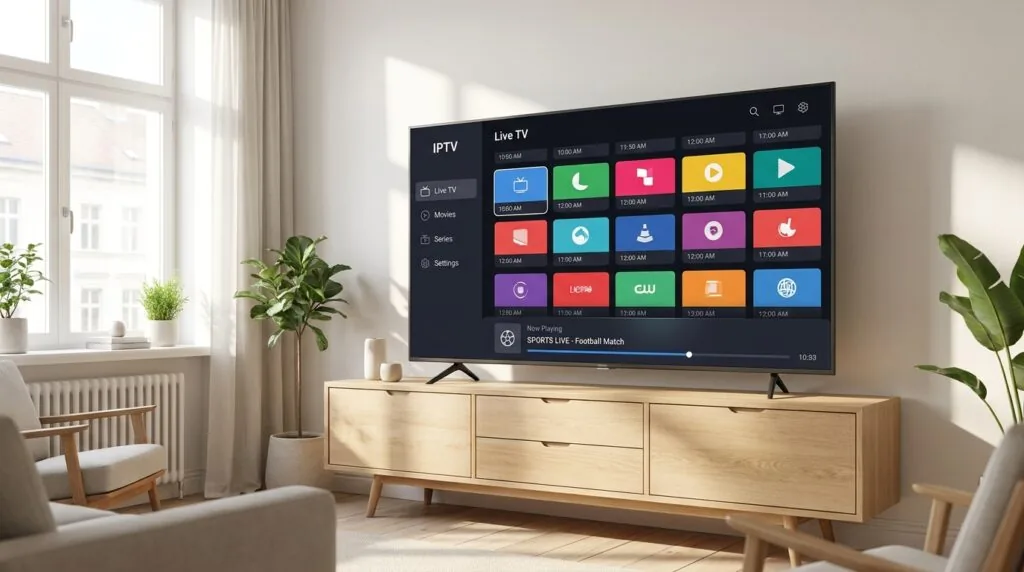
IPTV Smarters Pro and TiviMate are the two I’d recommend looking at. TiviMate has the better interface for EPG (electronic program guide) navigation, which matters if you watch scheduled TV regularly. IPTV Smarters Pro is more flexible with playlist types and slightly easier to set up for beginners. Both support Xtream Codes and M3U.
If you want to understand how Smarters handles multi-screen setups and M3U playlists in particular, a closer look at the iptv smarters video player app covers the setup in detail.
Amazon Fire TV Stick
The Fire Stick’s closed ecosystem means you might need to sideload apps not available in the Amazon Appstore. Downloader (by AFTVnews) is the standard tool for this. TiviMate is available on the Amazon Appstore directly, which makes it the path of least resistance. IPTV Smarters is also available and works well on the Fire Stick interface.
Windows and macOS
On desktop, IPTV Player Zero (available at iptvplayerzero.com) is a solid option. It has a 72-hour pro trial and a lifetime unlock for $12.99 at the time of writing. VLC remains a free fallback that can open any M3U file directly, though it lacks a proper TV-style interface. If you prefer a TV-like layout on your PC, the “IPTV Player Smart TV Pro” app from the Microsoft Store is worth a look.
Smart TVs
Samsung and LG Smart TVs have their own app stores with IPTV options. Smart IPTV is a popular one for Samsung; it costs a one-time fee of around 5.49 euros. For a clear breakdown of what separates it from the others, what makes smart iptv different from other IPTV players? is a useful read before you pay.
Mini takeaway: pick your device first, then narrow down by features. Don’t download an app just because it has the most reviews.
What your subscription provider has to do with it
Here’s where a lot of guides go quiet, but it’s honestly the factor that matters most once your network and app are sorted. Your iptv player is only as good as the streams it’s playing. A shaky provider means constant buffering no matter how well-configured your app is.
What to look for in a provider
For Finnish viewers specifically, the relevant factors are server locations, Nordic channel coverage, and concurrent stream limits. A provider with servers only in the UK will add latency for users in Finland. That extra 30–50ms might not sound like much, but on a live stream it contributes to jitter and buffer events.
For instance, take iptv subscription as an example of a provider that targets Nordic and Finnish audiences specifically. Knowing where a provider’s infrastructure is based gives you a useful data point when comparing options, especially if you’re finding that your current streams buffer mostly during European prime time.
On the pricing side, IPTV subscriptions in Finland typically run anywhere from 10 to 25 euros per month, depending on channel count and stream quality tiers. If you’re trying to figure out whether the cost makes sense relative to what you get, is iptv finland worth the monthly subscription cost? breaks down the value calculation honestly.
Red flags in a provider
- No test period or trial stream before purchase
- Only one concurrent stream on a base plan (unreasonable for a household)
- No EPG data included (you’ll be watching blind without program guides)
- Customer support that only responds via Telegram with multi-day delays
A comparison like 5 things to know before subscribing to nordic iptv is useful background before you commit money to any service.
Mini takeaway: your provider’s server quality sets the ceiling. A good iptv player can’t compensate for an overloaded streaming server.
Common mistakes people make with iptv player setup
I’ve helped a few friends set up their IPTV over the years, and the same mistakes come up every time. These aren’t complicated errors, they’re just easy to miss.
Using an outdated playlist URL
M3U playlist URLs expire. Providers rotate them for security. If your streams stopped working suddenly and your network is fine, the first thing to check is whether your provider has issued a new playlist URL. Log into your provider’s panel and grab a fresh link. Paste it into your iptv player as a new playlist rather than editing the old one.
Ignoring the EPG source
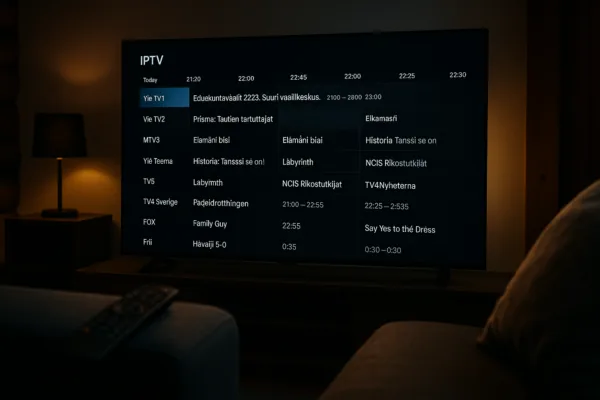
Your EPG (electronic program guide) is loaded separately from your channel list in most iptv player apps. If you’re not seeing program information, you probably haven’t configured an EPG URL, or the one you have is out of date. Your provider should supply both the M3U URL and an XMLTV EPG URL. Enter both.
Running too many apps in the background
On Fire Sticks and budget Android boxes, this is a real issue. These devices have limited RAM, often 1–2 GB. Background apps eat into that. Close everything before launching your iptv player. Some users install “Background Apps and Process List” to see what’s running.
Skipping the hardware decoder option
In your player’s video settings, there’s usually an option for hardware acceleration or hardware decoding. On capable devices, turning this on offloads video decoding to the device’s dedicated chip rather than the CPU. The result is smoother playback and less heat. Most modern Android devices and Fire Sticks benefit from this.
According to the VLC media player features documentation, hardware decoding support covers H.264, H.265 (HEVC), and VP9 on compatible devices, which covers the vast majority of IPTV streams currently in use.
Mini takeaway: most setup mistakes are fixable in under two minutes once you know what to look for.
Frequently Asked Questions
Is an iptv player free to download and use?
Most iptv player apps are free to download, but some charge for advanced features. TiviMate has a free version with limited EPG functionality and a premium unlock around 4.99 euros per year. IPTV Smarters Pro charges a small one-time fee on some platforms. The player is separate from your subscription, which you pay to a content provider.
Which iptv player works best on a Fire TV Stick?
TiviMate is the most consistently recommended option for Fire TV Stick users because it’s available directly in the Amazon Appstore and has a well-designed remote-friendly interface. IPTV Smarters Pro is a close second. Both support Xtream Codes and M3U playlists, and both let you configure buffer size for smoother live TV playback.
How can I watch IPTV without buffering in Finland?
Use a wired ethernet connection where possible, increase your iptv player’s buffer size to at least 5 seconds, make sure your subscription provider has servers based in or near Europe, and avoid peak-hour streaming if your provider’s server seems overloaded. Switching from Wi-Fi to ethernet alone fixes the problem for a large number of users.
How do I add my M3U playlist to an iptv player?
Open your iptv player app and go to “Add Playlist” or a similar option in the main menu. Choose “M3U URL” if your provider gave you a web link, or “Upload File” if you downloaded the playlist to your device. Paste the URL or select the file, give the playlist a name, and save. The app will load your channel list automatically.
Can I use the same iptv player subscription on multiple devices?
The iptv player app itself can usually be installed on multiple devices for free. But your IPTV subscription from your content provider typically limits the number of concurrent streams, often one or two on a basic plan. Running more simultaneous streams than your plan allows usually results in one of them being kicked or throttled by the server.
Conclusion
Buffering in your iptv player is almost always traceable to one of three places: your network, your app settings, or your provider’s server. Work through them in that order and you’ll solve it faster than any forum thread will. The app itself rarely gets the blame it doesn’t deserve, and it rarely escapes blame it does deserve either. Get your network wired, bump up your buffer cache, and make sure your M3U playlist URL is current.
If you’re shopping for a new provider alongside fixing your player, a service like iptv subscription is worth comparing against what you currently use, particularly if you’re in Finland and looking for Nordic channel coverage. And if you’re still deciding which iptv player app fits your device best, revisit the 7 best iptv players ranked for Android and Fire TV to make an informed choice before you install anything new.
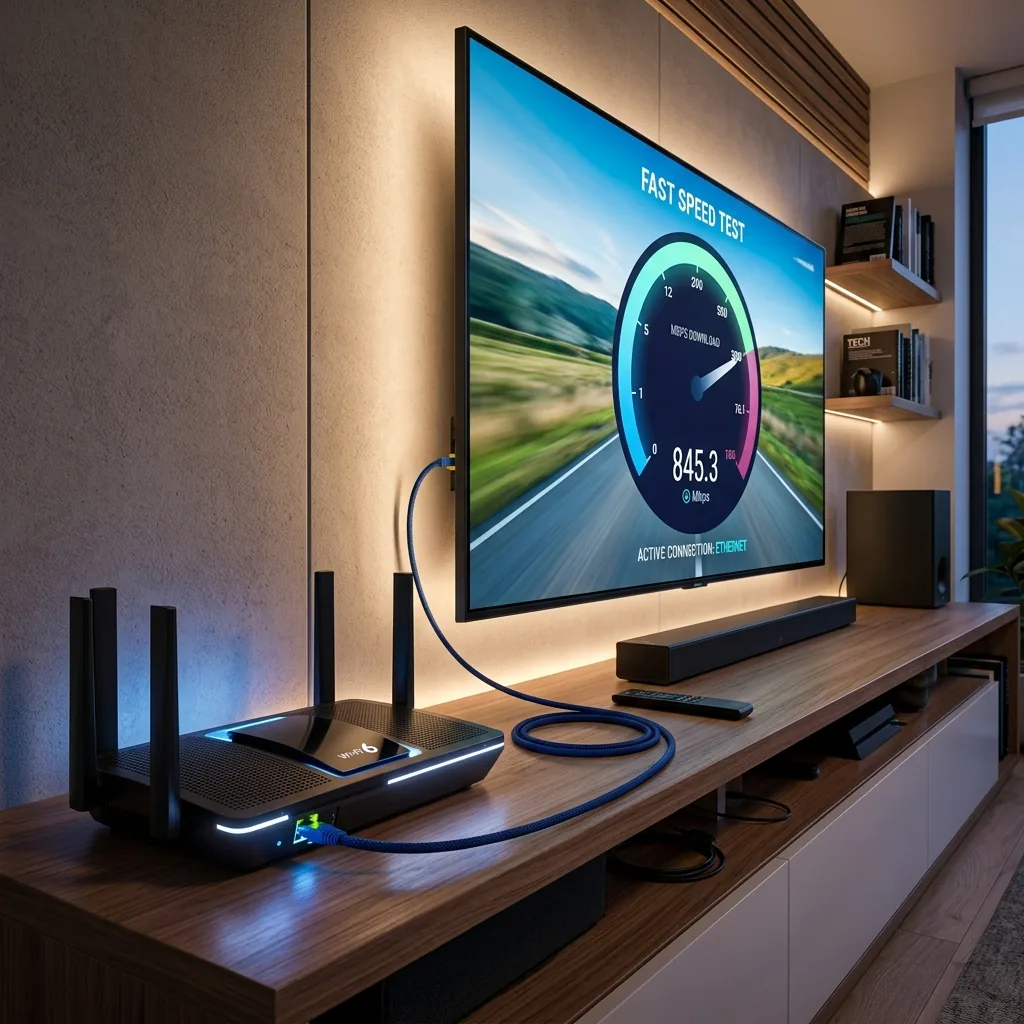
Ensure you select high-performance IPTV hardware and players for the optimal streaming experience with zero buffering.

Ensure you select high-performance IPTV hardware and players for the optimal streaming experience with zero buffering.