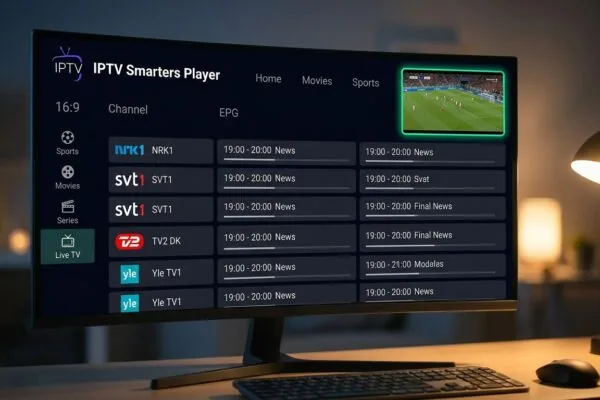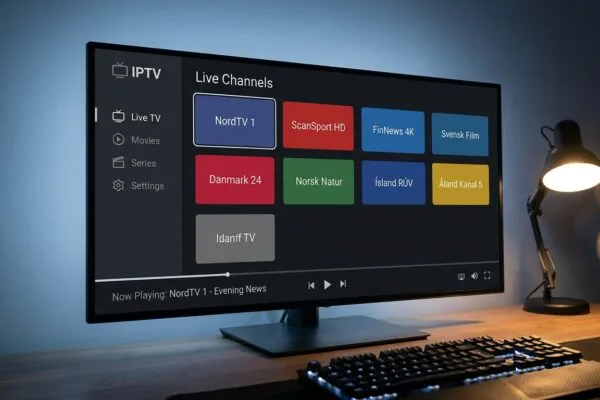
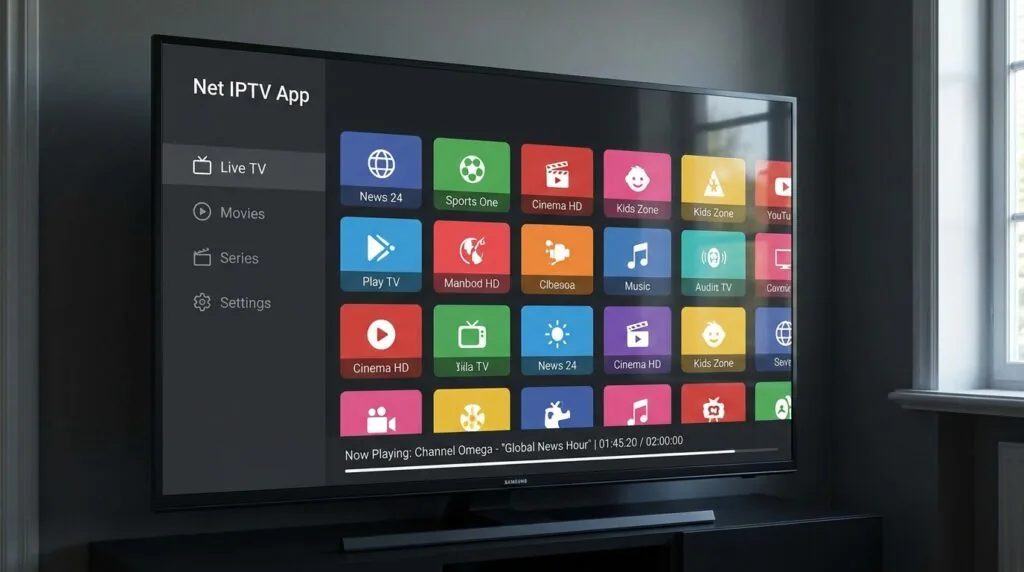
How to set up net iptv on your Android smart TV
Net iptv is a dedicated IPTV player app that lets you load M3U playlists or Xtream Codes onto Android smart TVs, Samsung, LG, iOS devices, and more. Getting it running takes roughly five minutes if you know the exact steps, which most guides skip over.
If you’ve spent any time hunting for a reliable IPTV player, you’ve probably bumped into net iptv at some point. It sits comfortably on the Google Play Store and Apple App Store, works across an impressive range of devices, and doesn’t demand much from you technically. The app’s whole pitch is simplicity: give it a playlist, point it at a source, and watch. But “simple” doesn’t mean “obvious,” especially the first time you’re configuring a playlist on a smart TV with a remote and no mouse. This guide covers every step, from the download to the first channel loading correctly, plus what to do when things go sideways.
Table of Contents
- What exactly is net iptv and who should use it?
- Which devices actually support net iptv?
- How do you download and install net iptv?
- How do you add your playlist or Xtream Codes?
- What features does net iptv actually offer?
- Common problems and how to fix them
- Choosing an IPTV subscription to pair with the app
- Frequently Asked Questions
- Conclusion
What exactly is net iptv and who should use it?
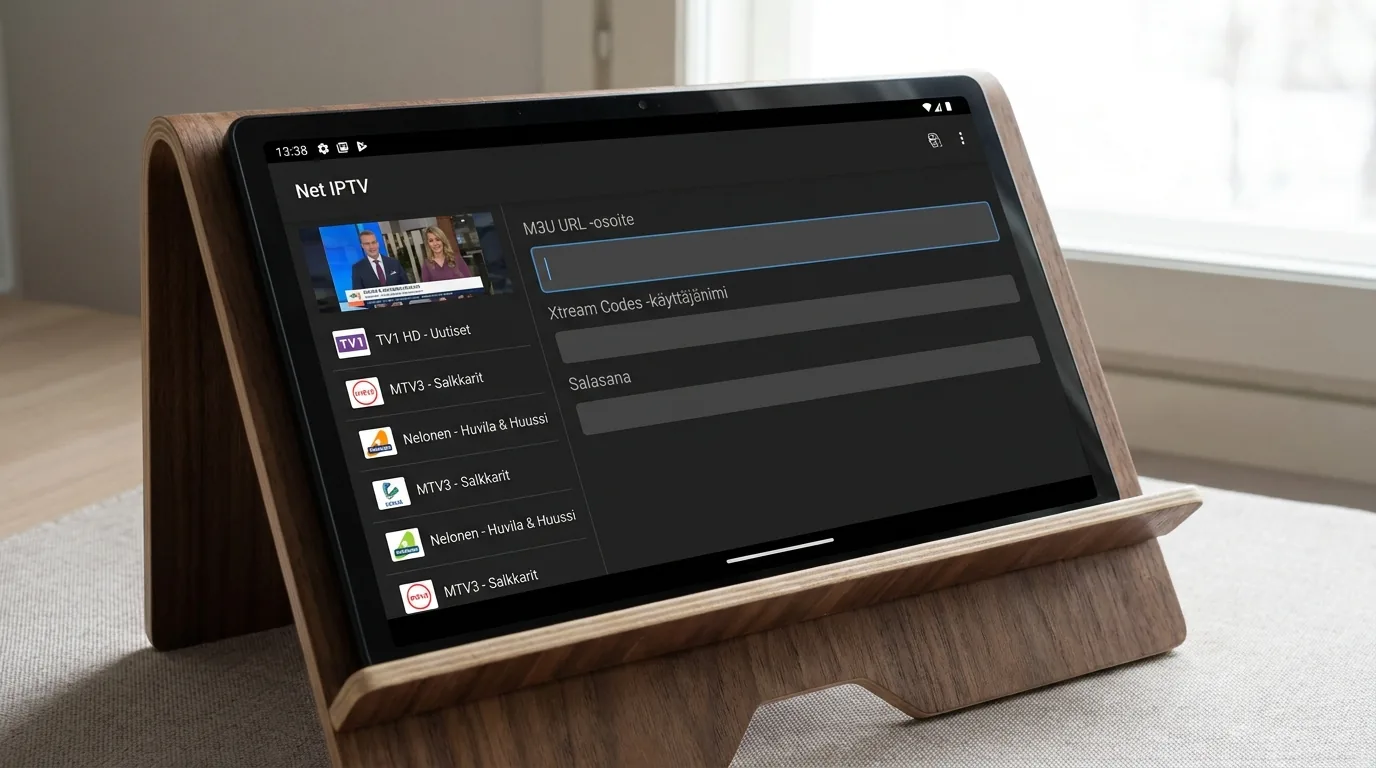
Here’s a take you won’t read on most setup blogs: net iptv is not the most feature-rich IPTV player available. It doesn’t have the EPG customisation of TiviMate, it won’t impress you with a polished interface the way some paid alternatives do. What it does have is near-universal device support, a genuinely lightweight footprint, and a setup flow that doesn’t require you to have a computer science degree.
The app is officially listed as “Net ipTV” on the Google Play Store and Apple App Store, though you’ll see it written as “net iptv” across most community forums. It’s a player, not a content provider. That distinction matters. The app itself doesn’t give you channels. You bring your own M3U playlist URL or Xtream Codes credentials from a separate IPTV subscription, and the app handles playback.
Who is this actually for?
Realistically, net iptv suits three kinds of people:
- First-time cord-cutters who want something that works on their existing Samsung or LG smart TV without sideloading APKs or messing with developer settings.
- People with older Android devices who need a player that doesn’t choke on limited RAM.
- Households that move between devices, since net iptv’s MAC-address-based activation system means your playlist config can follow you across devices without re-entering credentials manually every time.
If you’re a power user who wants multi-screen PiP, advanced EPG sorting, or granular buffer controls, you might find net iptv a bit plain. For those cases, it’s worth looking at 7 best iptv players ranked for Android and Fire TV to compare alternatives side by side before committing to one.
But for a Finnish household that just wants local and international channels running on the living room TV without fuss? Net iptv is a sensible starting point.
“IPTV apps that work natively on smart TV operating systems like WebOS and Tizen are significantly harder to develop, which is why very few players support them properly.” According to Android Authority’s IPTV explainer, native smart TV support remains a genuine differentiator among player apps.
Which devices actually support net iptv?
This is where net iptv earns more respect than its basic interface might suggest. The supported device list is broad enough that most people reading this will already own something compatible.
The full device list
- Samsung Smart TV (Tizen OS)
- LG Smart TV (WebOS)
- Android phones and tablets
- Android TV and Google TV devices
- Amazon Fire TV and Fire Stick
- iPhone and iPad (via the App Store as “Net ipTV Pro”)
- Various other smart TV platforms listed on the app’s support documentation
The Samsung and LG native support is genuinely rare. Most IPTV players are Android-first and treat smart TV support as an afterthought, which means you end up sideloading an Android APK onto a TV that wasn’t designed to run it smoothly. Net iptv actually builds for Tizen and WebOS separately, which is why the interface on a Samsung feels reasonably native rather than like a phone app stretched onto a 55-inch screen.
One practical note for Finnish users: if you’re on a relatively recent Samsung (2018 model year or newer), you should find net iptv directly in the Samsung Smart TV app store without any workarounds. LG WebOS users from similar vintages can find it in the LG Content Store. That removes one of the biggest friction points in the whole setup process.
For anyone weighing net iptv against Smart IPTV specifically on smart TVs, What makes smart iptv different from other IPTV players? gives a useful breakdown of where the two apps diverge on platform support and activation models.
How do you download and install net iptv?
Installation varies more than you’d think depending on your device. Let’s go platform by platform.
On a Samsung Smart TV
- Press the Home button on your remote.
- Navigate to Apps, then the search icon.
- Search for “Net IPTV”.
- Select the app and press Install.
- Once installed, open it. You’ll see a MAC address on screen. Note this down.
That MAC address is your activation key. You’ll need it shortly to link your playlist via the net iptv portal.
On an LG Smart TV
- Open the LG Content Store from your home screen.
- Search for “Net IPTV”.
- Install and open. Again, note the MAC address shown on launch.
On Android TV or Fire TV
Go to the Google Play Store or Amazon Appstore, search “Net IPTV,” and install normally. The Android version has a slightly more direct setup than the smart TV versions, since you can interact with text fields more easily using a mouse or Bluetooth keyboard.
On iPhone or iPad
Search the App Store for “Net ipTV Pro” (note the Pro suffix on iOS). The iOS version is functionally similar to Android but has a slightly different settings layout.
How do you add your playlist or Xtream Codes?
This is the step that trips most people up the first time. On smart TV versions of net iptv, you can’t type a long URL comfortably with a remote. The app solves this with a web portal activation system.
Adding via the web portal (recommended for smart TVs)
- Open net iptv on your TV and note the MAC address shown on the welcome screen.
- On a phone or computer, go to the net iptv web portal (searchable as “net iptv portal” or “net iptv activation”).
- Enter your TV’s MAC address.
- Paste your M3U playlist URL into the designated field, or enter your Xtream Codes credentials (server URL, username, password).
- Save. Back on the TV, restart the app or press refresh. Your channels should populate.
Adding directly on Android
If you’re on an Android phone, tablet, or Android TV device, you can skip the portal entirely. Open the app, go to Settings, select Playlist, and enter your M3U URL or Xtream Codes directly. The on-screen keyboard makes this workable, though a Bluetooth keyboard speeds things up considerably if you’re on a TV.
What if your channels aren’t loading?
Nine times out of ten, it’s either a wrong URL (check for trailing spaces or http vs https mismatches) or a subscription that hasn’t been activated by your provider yet. Occasionally it’s a buffering issue on the player side, in which case Fix buffering issues in your iptv player app today walks through the most common culprits systematically.
What features does net iptv actually offer?
Spare interface aside, net iptv covers the essentials and a few things beyond them.
Core playback features
- M3U playlist support with category parsing (Live, VOD, Series)
- Xtream Codes API integration for providers who use that format
- EPG (Electronic Program Guide) support via XMLTV URLs
- Multi-screen support on some device versions
- Parental controls for restricting channel categories
- Favourite channels list
- Subtitle and audio track switching during playback
The EPG integration is worth calling out specifically. You can link an XMLTV-format guide URL and get a proper program schedule overlay, which transforms the experience from “scrolling a numbered channel list” to something closer to a real TV guide. Your IPTV provider should supply an EPG URL alongside your M3U link, and if they don’t, that’s a sign worth noticing about their service quality.
For a direct comparison with another popular player that also handles M3U files across multiple screens, iptv smarters player lets you watch M3U channels on any screen is a solid read that puts the two side by side in practical terms.
Is it free?
The app itself is free to download. Some platform versions have a small one-time payment (typically a few euros) to unlock certain features or remove limitations, but the base installation costs nothing. The ongoing cost comes from your IPTV subscription, not from net iptv itself.
Common problems and how to fix them
Spent an annoying Tuesday afternoon one winter troubleshooting a net iptv setup on a colleague’s LG TV, and the problems were frustratingly predictable. Here’s what comes up most often.
The app shows a MAC address but channels never load
This almost always means the MAC address wasn’t entered correctly in the portal, or the subscription hasn’t been linked to that MAC yet. Double-check character by character. Zeros and the letter O are a classic source of confusion here.
Channels load but stream freezes or buffers constantly
First, rule out your internet connection. Net iptv needs roughly 10-25 Mbps per HD stream to run cleanly. If your connection is fine, check whether the same channels buffer in another player app. If they do, the issue is upstream with your IPTV provider’s server. If only net iptv buffers, try changing the player engine in the app settings from the default to ExoPlayer or vice versa.
App not found in Samsung or LG store
Region availability occasionally causes this. If the app doesn’t appear in your store search, check that your TV’s store region is set correctly. Some older TV models may need a firmware update before the app becomes visible.
EPG not showing program data
The XMLTV URL needs to be entered separately from the M3U URL. It’s a common mistake to assume the EPG loads automatically from the playlist. In net iptv’s settings, there’s a dedicated EPG URL field. Paste your provider’s XMLTV link there, then force-refresh the guide data.
Choosing an IPTV subscription to pair with the app
The app is only half the equation. Net iptv is a player without content, so you need a separate subscription that gives you the M3U URL or Xtream Codes credentials to feed it.
For Finnish users, the channel lineup matters more than most providers advertise. You want to confirm that Finnish channels (Yle, MTV3, Nelonen, and similar) are actually in the package before paying, not just assumed from a vague “European channels” claim. The quality of the EPG data for Finnish-language content also varies significantly between providers.
On the technical side, some subscriptions are worth examining for compatibility. Take iptv subscription, for instance. They deliver streams via both M3U and Xtream Codes formats, which means you can plug their credentials directly into net iptv’s playlist settings using either method, without needing to convert or reformat anything. That kind of dual-format support is more useful than it sounds when you’re trying to get net iptv running on a device that handles one format better than the other.
Beyond format compatibility, think about server stability. An IPTV subscription that runs on overloaded servers will buffer regardless of how well net iptv is configured. Look for providers who are transparent about their stream capacity and uptime history.
Pricing across the Finnish IPTV market runs roughly 10-20 euros per month for a full package. For a detailed look at what that actually buys you in the local market, Is iptv finland worth the monthly subscription cost? breaks down the value question honestly.
What to check before buying any subscription
- Does the provider explicitly support net iptv as a compatible player?
- Do they supply an EPG URL alongside the M3U?
- Is there a short trial period before committing to a monthly plan?
- How many simultaneous connections does the plan allow?
On the pricing comparison point: providers vary quite a bit in how they structure multi-connection plans. Compare that with how iptv subscription approaches it, where different connection tiers are priced separately rather than bundling everything into one inflated flat rate. Whether that model suits you depends on whether your household has one TV or four.
For more context on how IPTV technology works at a protocol level, the Wikipedia article on Internet Protocol television is a reasonable starting point without being too technical.
Frequently Asked Questions
What is the net iptv app and what does it do?
Net iptv is a free IPTV player application available on Android, iOS, Samsung Smart TV, LG WebOS, Amazon Fire TV, and other platforms. It doesn’t provide channels itself. Instead, it reads M3U playlists or Xtream Codes credentials from a separate IPTV subscription and handles all playback, EPG display, and category sorting on your device.
Is net iptv free to use?
Downloading and installing net iptv costs nothing. Some platform versions charge a small one-time fee (typically a few euros) for premium features. The ongoing cost you’ll actually pay is for your IPTV subscription, which is a separate service that provides the actual channels. The app itself has no recurring fee.
How do I add my M3U playlist to net iptv on a smart TV?
On Samsung and LG smart TVs, open net iptv and note the MAC address on the welcome screen. Then visit the net iptv web portal from a phone or computer, enter the MAC address, and paste your M3U URL into the playlist field. Save, restart the app on your TV, and your channels will appear after a brief loading period.
Why isn’t net iptv showing any channels after setup?
The most common causes are an incorrectly entered MAC address in the web portal, a playlist URL with a typo or wrong protocol (http vs https), or a subscription that your provider hasn’t activated yet. Check each of these in order. If channels load but buffer, the issue is likely your internet speed or the provider’s server quality rather than the app itself.
Does net iptv work with Xtream Codes?
Yes. Net iptv supports both M3U playlist URLs and Xtream Codes API credentials (server address, username, and password). On Android versions, you enter Xtream Codes directly in the app settings. On smart TV versions, you can enter them through the web portal using your device’s MAC address to link the configuration remotely.
Conclusion
Net iptv won’t win any awards for interface design, and it’s not trying to. What it does consistently well is run on almost every screen you already own, handle both M3U and Xtream Codes without drama, and stay out of your way once configured. For Finnish households trying to get a working IPTV setup on a Samsung or LG smart TV without sideloading anything sketchy, net iptv is a genuinely practical choice. The setup process is around five minutes if you follow the MAC address portal method, and most problems that come up post-install are subscription-side rather than app-side. Get the player installed, pair it with a subscription that explicitly supports it, and you’ll have a working system faster than most guides suggest. Ready to take the next step? Pick your device, download net iptv, and get your playlist linked today.
Ensure you select high-performance IPTV hardware and players for the optimal streaming experience with zero buffering.
Ensure you select high-performance IPTV hardware and players for the optimal streaming experience with zero buffering.