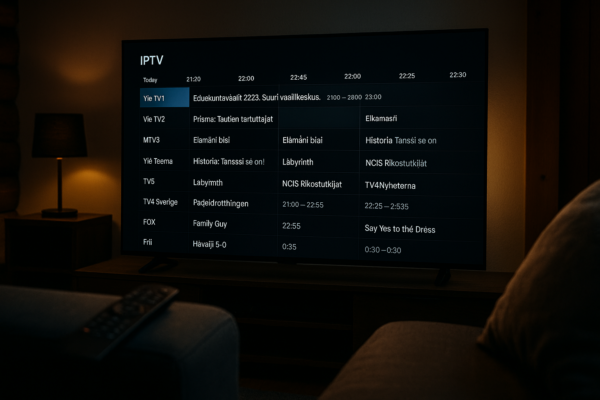
Setting up IPTV for the first time can feel daunting when you see terms like Xtream Codes, M3U playlists, and EPG data thrown around without explanation. The reality, once you understand the basic structure, is that IPTV setup on any device follows a simple three-step pattern: download the right app, open it and enter your subscription credentials, and start watching. This guide covers the complete setup process for every major platform including Samsung and LG Smart TVs, Amazon Fire Stick, Android phones and tablets, iPhone and iPad, and Windows and Mac computers. By the end of this article you will have a thorough understanding of how to get IPTV working on any screen in your home, plus troubleshooting steps for the most common issues that arise during setup.
Before You Start: What You Need Ready
Before downloading any application, make sure you have three things prepared. First, your IPTV subscription login credentials — these are typically provided immediately after purchase via email and consist of a server URL, a username, and a password if your provider uses Xtream Codes API, or a single M3U playlist URL if your provider uses that format. Second, a stable internet connection delivering at least 25 Mbps at the device you plan to use. Third, a device that supports IPTV applications, which covers the vast majority of devices manufactured in the last five years. If your broadband connection is borderline, use a wired Ethernet connection directly from your router to your TV or streaming device wherever possible, as wired connections eliminate the wireless interference that causes most buffering issues. Once these three elements are in place, the actual setup takes only a few minutes.
Setting Up IPTV on Samsung Smart TV
Samsung Smart TVs running the Tizen operating system have access to the Samsung App Store, which contains dedicated IPTV applications. The two most widely used and reliable options on Samsung are Smart IPTV and SET IPTV. To install either app, press the Home button on your Samsung remote, navigate to the Apps section, and use the search function to find your chosen application. Install it and open it. When the app launches for the first time, it will display your TV MAC address on screen — this is a unique identifier for your television. Note this address carefully. Open the app website on your phone or computer, enter your MAC address, and paste in your M3U playlist URL or Xtream Codes credentials. Click Save or Send. Return to the IPTV app on your Samsung TV, restart it, and your channel list will load automatically. Smart IPTV requires a one-time activation fee of approximately five euros for lifetime access, while SET IPTV has a similar small one-time cost.
Setting Up IPTV on Amazon Fire Stick
The Amazon Fire Stick is one of the most popular IPTV devices available, offering exceptional value, portability, and broad app support. IPTV Smarters Pro is the recommended application for Fire Stick users. From the Fire Stick home screen, use the search icon and search for IPTV Smarters Pro. If it appears in the Amazon App Store results, download and install it directly. If it does not appear in your regional store, you will need to sideload it. To sideload, go to Settings, then My Fire TV, then Developer Options, and enable Apps from Unknown Sources. Next, download the Downloader app from the Amazon App Store, open it, and enter the URL provided by your IPTV service for the APK installer. Once IPTV Smarters Pro is installed, open it and select Add User. Choose Login with Xtream Codes API if your provider supports it, enter your server URL, username, and password, and wait for the channel list to load. Alternatively, select Load Playlist and paste your M3U URL. The application organises your channels into Live TV, Movies, and Series categories automatically.
Setting Up IPTV on LG Smart TV
LG Smart TVs running the WebOS platform support IPTV through the LG Content Store. Press the Home button on your LG remote to access the WebOS launcher, navigate to LG Content Store, and search for Smart IPTV or SET IPTV. The installation process follows the same MAC address registration pattern as Samsung. Install the app, open it to get your MAC address, visit the app website to register your device and upload your playlist URL, and then restart the app on your TV to load your channels. SET IPTV is generally recommended on LG over Smart IPTV because it supports direct Xtream Codes login, meaning you can enter your server URL, username, and password directly inside the app without needing to visit an external website on another device. According to LG Support, keeping your television firmware updated ensures full compatibility with the latest versions of these third-party applications.
Setting Up IPTV on Android Phone, Tablet, or TV Box
Android is the most flexible platform for IPTV because the Google Play Store contains multiple high-quality IPTV applications with direct Xtream Codes support. Open the Play Store, search for IPTV Smarters Pro, and install it. Alternatively, TiviMate is an excellent choice for power users who prefer a cable-TV-style interface with advanced EPG features. Open either app after installation, select Add Playlist or Add User, choose Xtream Codes API or M3U URL depending on what your provider offers, enter your credentials, and tap Load. The app downloads your channel list, which can take one to two minutes depending on the total number of channels in your subscription. Once loaded you can browse channels by category, mark favourites, and configure the EPG to update automatically every 24 hours. Android TV devices including Sony, Philips, and TCL Smart TVs follow this exact same process since they run the full Android TV operating system with Play Store access.
Setting Up IPTV on iPhone and iPad
iOS is slightly more restricted than Android in terms of IPTV app availability, but solid options exist. The most widely recommended application for iPhone and iPad is Smarters Player Lite, which is the iOS-optimised version of IPTV Smarters Pro and is available free from the Apple App Store. GSE Smart IPTV is another excellent alternative with a clean interface and strong M3U and Xtream Codes support. Download your chosen app from the App Store, open it, tap Add User or the plus icon, and enter your Xtream Codes credentials or M3U URL. The setup process takes under two minutes on a modern iPhone or iPad. Once configured, iOS users can also take advantage of AirPlay to stream content from their phone or tablet wirelessly to an Apple TV connected to their main television, giving them big-screen viewing without needing any additional hardware setup on the TV itself.
Setting Up IPTV on Windows or Mac
Watching IPTV on a computer is straightforward using VLC Media Player, which is free, open-source, and available for both Windows and Mac at videolan.org. Open VLC, go to Media in the menu bar, select Open Network Stream, paste your M3U URL, and click Play. Your channel list loads as a playlist. For a full-featured experience with EPG support, IPTV Smarters Pro for Windows is available from the Smarters website.

Troubleshooting the Most Common Setup Problems
If your channels fail to load after entering your credentials, verify that your server URL includes the correct port number that your provider specified — this is the most frequently overlooked detail during setup. If the app shows a connection error, check that your internet connection is active and that no VPN is blocking the IPTV traffic on port 80 or 8080. If specific channels buffer while others play without issue, the problem is almost certainly server-side rather than a local configuration issue — contact your provider to report the affected channel names. If the EPG fails to populate after loading, go into the app EPG settings and trigger a manual refresh, then give it five minutes to download the full program guide data. For persistent issues, our detailed setup guide covers device-specific troubleshooting steps in full, and our support team is available through the contact page to help with any setup questions.
Optimising Your Setup After Installation
Once your IPTV is working, a few additional steps will ensure the best possible experience. Enable hardware video decoding in your app settings, which offloads the video processing work to your device graphics processor and results in smoother playback of 4K content with less battery drain on mobile devices. Set your EPG to auto-update every 24 hours so your program guide stays current. If you are on Wi-Fi, consider switching to a 5 GHz network band rather than 2.4 GHz for faster, more stable wireless throughput. For households watching sports regularly, configuring your router Quality of Service settings to prioritise IPTV traffic ensures your stream quality is not affected by other users downloading or gaming simultaneously on the same network. Visit our subscription page if you are not yet subscribed and want to get started today.