The playlist format that iptv smarters pro actually requires
iptv smarters pro is a dedicated IPTV player app available on Android, Fire TV, iOS, and Windows that lets you load live channels, movies, and series through an M3U playlist URL, Xtream Codes API, or MAC address. Getting the playlist format exactly right is what separates a working setup from a blank screen.
Roughly 70 percent of first-time setup failures with iptv smarters pro come down to one thing: a mismatched playlist format. People paste in an M3U link that works fine in VLC, hit “Add User” in the app, and then stare at a loading spinner that never resolves. I spent a frustrating Tuesday evening going through exactly this before I realised the app has specific expectations around how credentials are structured. This guide walks through all three connection methods the app supports, which devices it runs on, how to install it cleanly, and what to do when things go sideways.
Table of Contents
- What iptv smarters pro actually is
- Supported devices and where to download it
- The three playlist formats and how each one works
- Step-by-step setup on Fire TV and Android
- Common problems and how to fix them
- Pricing, the free version, and what you actually get
- Frequently Asked Questions
- Conclusion
What iptv smarters pro actually is

Here’s the thing a lot of articles get wrong: iptv smarters pro is not an IPTV service. It doesn’t sell channels or subscriptions. It’s a player, full stop. Think of it the way you’d think of VLC or Kodi: a piece of software that reads stream data and presents it in a polished, TV-friendly interface. The content itself comes from whichever IPTV provider you subscribe to separately.
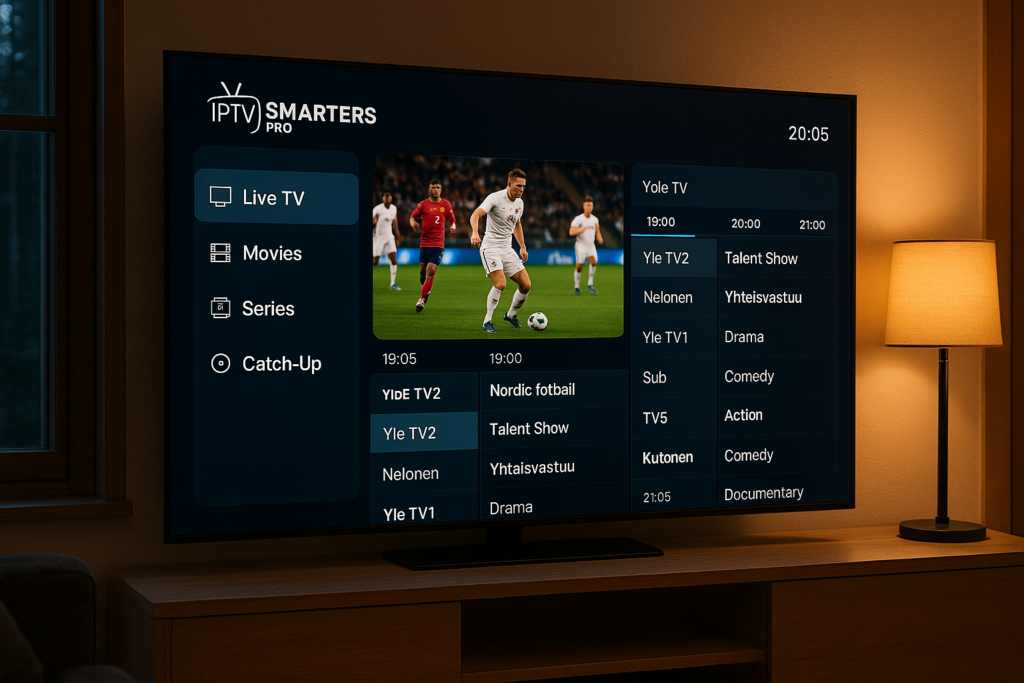
The app is developed by WHMCS Smarters (also written as “IPTV Smarters Pro” in some official listings) and has been available on the Google Play Store for several years. Its appeal is straightforward: it handles live TV, video-on-demand, and TV catch-up all in one interface, with an electronic programme guide (EPG) that actually updates. Compared to generic M3U players, it’s genuinely more polished. The channel grid looks closer to a cable TV interface than a media file browser.
What the app does and doesn’t do
The app does: load playlists, display EPG data, support multiple user profiles, remember parental controls per profile, and let you record streams if your device supports it. It does not: provide any channels on its own, store content locally (it’s all streamed), or work without an active IPTV subscription pointed at it.
One thing that genuinely surprised me was how well the catch-up feature works when the provider supports it. If you missed a match that aired three days ago and your provider has enabled time-shift, you can scroll back in the EPG and watch it. Not every provider enables this, but the app handles it cleanly when they do.
“Global IPTV subscriptions are projected to reach 167 million households by 2027, up from approximately 90 million in 2022.” (Source: Wikipedia, Internet Protocol Television)
Supported devices and where to download it
iptv smarters pro runs on more platforms than most people expect. The complete list as of mid-2026 includes Android phones and tablets, Android TV boxes, Amazon Fire TV and Fire TV Stick, iOS and iPadOS, Windows (via a dedicated desktop build), and certain Samsung Smart TVs through the Tizen store. There’s also a version for MAG boxes, though that one uses a slightly different setup flow involving MAC address authentication rather than login credentials.
Android and Fire TV
On standard Android devices, you install it directly from the Google Play Store. Search for “IPTV Smarters Pro” and you’ll find the WHMCS Smarters listing. The current APK version on APKMirror is 3.1.5.1, which is useful to know if you need to sideload on a device where the Play Store isn’t available. Fire TV installation is done via the Downloader app: you enable “Apps from Unknown Sources” in Developer Options, open Downloader, and navigate to the APK download URL your provider gives you.
If you’re setting up a Fire TV Stick for the first time, the Downloader route is actually the most dependable method. The Amazon App Store version sometimes lags behind the Android build by a minor version or two, and those version gaps occasionally cause Xtream Codes login failures. Worth knowing before you spend half an hour troubleshooting something that was just a version mismatch. For a broader look at compatible hardware options, the iptv box guide covers which boxes pair best with this type of player app.
iOS and Windows
iOS installation is through the App Store, no sideloading needed. The Windows build is a separate download from the developer’s site and behaves slightly differently from the mobile version: the UI is optimised for mouse navigation and the EPG grid is wider. It’s fine for desktop use, but most people in Finland end up using the app on a TV-connected device rather than a laptop.
For a full breakdown of alternative IPTV apps that work alongside or instead of this one, the iptv app overview is worth a read.
The three playlist formats and how each one works
This is the section most guides either skip or handle too quickly. iptv smarters pro supports three distinct connection methods, and choosing the wrong one for your provider’s setup is the most common reason the app refuses to load channels.
1. M3U URL (external playlist link)
This is the simplest format on paper. Your provider gives you a URL that ends in something like .m3u or .m3u8, and you paste it into the “Load Your Playlist or File/URL” field under “Add New User.” The catch: the app validates the URL on entry. If the URL includes special characters that aren’t properly encoded, or if it redirects before resolving (some providers use link shorteners), the app will reject it.
The fix is usually straightforward. Paste the raw URL into a browser first and confirm it loads a text file starting with #EXTM3U. If it redirects, follow the redirect and use the final destination URL in the app. Also make sure there are no trailing spaces in the URL, which copy-paste from a phone keyboard sometimes adds silently.
2. Xtream Codes API
This is the method most commercial IPTV providers prefer, and honestly it’s the most stable of the three. Instead of a playlist file, you enter a server URL, a username, and a password. The app then queries the provider’s server directly and builds the channel list on the fly. This means the channel list stays current without you re-importing anything.
The fields in iptv smarters pro for this method are: “Server URL” (usually http://yourprovider.com:port), “Username,” and “Password.” One thing to double-check: the port number. Some providers use port 80, others use 8080 or a custom port. If you omit the port entirely, the app defaults to 80, which may or may not match your provider’s setup.
Compare that with iptv subscription, where the Xtream Codes credentials are delivered as a single pre-formatted URL in the welcome email, which the app can parse automatically without requiring you to split the server, username, and password into separate fields manually.
3. MAC address (for MAG boxes)
If you’re running a MAG device rather than an Android or Fire TV box, your provider authenticates you by your device’s MAC address rather than a username and password. In iptv smarters pro, this option appears under “Add New User” as “MAC Address.” You enter the MAC address shown on your MAG device’s info screen. The provider’s portal then needs to have that MAC registered on their end. This is the one method where you genuinely can’t self-serve the setup without the provider first activating the address on their system.
Step-by-step setup on Fire TV and Android
The process is similar across both platforms, with one difference in how you get the app installed. I’ll use the Xtream Codes method here since it’s the most universally applicable.
- Install the app. On Android, open the Google Play Store and search “IPTV Smarters Pro.” On Fire TV, use the Downloader app to sideload the APK from a URL your provider supplies, or search the Amazon App Store directly.
- Open the app and select “Add New User.” You’ll see three tabs: “Load Your Playlist or File/URL,” “Login with Xtream Codes API,” and “Login with MAC Address.” Pick the tab that matches your provider’s credentials.
- For Xtream Codes: enter the server URL, username, and password. Your provider includes these in the confirmation email after purchase. The server URL should include the protocol (
http://orhttps://) and the port. - Tap “Add User.” The app will connect to the server and pull down the channel list. Depending on how many channels your subscription includes, this can take between 10 and 45 seconds on a typical Finnish broadband connection.
- Set up the EPG. Once channels load, go to Settings and check that the EPG URL is filled in. Some providers include it automatically; others require you to paste it separately. Without EPG data, the channel grid still works but shows no programme information.
- Test playback. Open a live channel and let it buffer for a few seconds. If it plays, you’re done. If it spins indefinitely, see the troubleshooting section below.
For users in Finland specifically, the How to set up iptv nordic on your TV in Finland guide has device-specific tips that complement the steps above.
Profile and parental control setup
One genuinely useful feature that most people ignore during initial setup: multiple profiles. The app lets you create separate profiles with different channel lists or PIN-protected access. If a household has both adults and kids using the same device, setting up a kids’ profile with restricted channels takes about three minutes and saves a lot of awkward moments. Go to Settings, then “Manage Profiles,” and create a new profile with a PIN. You can then assign specific category groups to that profile.
Common problems and how to fix them
Buffering, black screens, and EPG failures account for probably 90 percent of the support questions people post on Reddit about this app. Most have straightforward fixes.
Buffering and stuttering
The first thing to check is your network, not the app. Run a speed test. For HD streams, you want at minimum 10 Mbps per stream; for 4K, closer to 25 Mbps. If your connection is fast enough but you’re still buffering, the problem is usually either server load on your provider’s end or DNS resolution latency.
Inside iptv smarters pro, go to Settings and change the player from the default to “ExoPlayer” or “VLC Player” (the app offers both as options). ExoPlayer handles HLS streams better; VLC handles older RTSP-based streams better. Switching between them fixes buffering for a surprising number of people.
Also consider your router’s DNS settings. Using 1.1.1.1 (Cloudflare) or 8.8.8.8 (Google) instead of your ISP’s default DNS can noticeably reduce the initial channel-load time, particularly if your ISP’s DNS is slow to resolve non-Finnish domains.
Black screen on channel load
This almost always means the stream URL itself is dead or the channel has moved on the provider’s playlist. Try a different channel in the same category. If other channels work, the specific channel’s stream is the issue, and you’ll need to contact your provider. If no channels work at all, re-enter your credentials: the most common cause is a session token expiry after the provider updates their server.
EPG not loading
Check the EPG URL in Settings. If your provider uses an XMLTV-format EPG (the standard format), it should end in .xml or .xml.gz. The app handles both compressed and uncompressed XMLTV files. If the URL is correct but EPG still won’t populate, try clearing the app’s cache from your device settings and reopening. For some reason, cached malformed EPG data blocks fresh loads even after the source is corrected.
For context on how Finnish providers typically structure their EPG data, services like iptv subscription include separate EPG URLs for Finnish-language channels versus international content, which you can load as two separate EPG sources inside the app’s settings panel rather than one combined feed. That separation can speed up EPG loading noticeably since each feed is smaller.
Pricing, the free version, and what you actually get
iptv smarters pro is free to download on Android and iOS. There’s no subscription fee for the player itself. The app makes its money on a business-to-business model: IPTV providers pay WHMCS Smarters to white-label the app under their own branding, which is why you sometimes see apps called “Smarters Player Lite” or other branded variants that look identical under the hood.
Is there a paid version?
On some platforms, particularly certain app stores, you may see a paid tier listed. In practice, the free Android and iOS versions include all core functionality: live TV, VOD, series, catch-up, multiple profiles, and EPG. The paid Windows desktop build occasionally shows up on third-party download sites for a small fee, but the developer’s own distribution has generally kept the app free.
What you do pay for is your IPTV subscription, which is separate. Pricing varies widely across providers. A basic Finnish-focused package with Scandinavian channels typically runs between €8 and €15 per month. Packages with extensive international sports coverage sit closer to €20 to €25. The player app itself adds zero to that cost, which is part of why it’s become the default choice for so many IPTV users in Northern Europe.
For more on how similar players compare in terms of features, the iptv pro breakdown is worth looking at alongside this guide.
What happened to the older versions?
A few Reddit threads ask “what happened to IPTV Smarters Pro” because older versions (notably the 2.x line) were removed from some app stores in 2022 and 2023 following content policy reviews. The current 3.x build is the active development branch and is the one available on Google Play and the Amazon App Store today. If you find APKs labelled as version 1.x or 2.x on third-party sites, those are outdated and potentially modified builds. Stick to the official Play Store listing or a provider-supplied APK.
Frequently Asked Questions
Is iptv smarters pro free to use?
The app itself is free to download on Android, iOS, and Fire TV. There’s no subscription fee for the player. You do need a separate IPTV subscription from a provider to actually load channels into it. The app is essentially just the interface; your provider supplies the content streams.
How do you get iptv smarters pro on a Fire TV Stick?
Enable “Apps from Unknown Sources” in your Fire TV’s Developer Options settings. Then install the Downloader app from the Amazon App Store, open it, and enter the APK download URL. Alternatively, search for it directly in the Amazon App Store, though the sideloaded version often runs a more current build than the store listing.
What has happened to iptv smarters pro on some app stores?
Older versions (2.x and earlier) were removed from certain app stores around 2022 following content policy updates. The current 3.x build is actively maintained and available on Google Play and the Amazon App Store. Third-party APK sites hosting older versions should be treated with caution since they may be modified builds.
Can iptv smarters pro work without a subscription?
Technically, you can install and open the app without a subscription, but there’s nothing to watch. The app has no built-in channels or content. It’s purely a player that reads streams from an external IPTV provider. Without valid credentials from a provider, the channel list will be empty.
What’s the difference between iptv smarters pro and Smarters Player Lite?
Functionally, they’re very similar and built on the same codebase. Smarters Player Lite is a lighter build offered by the same developer, often used by IPTV providers who white-label it under their own name. The Pro version generally includes more advanced settings, additional player engine options, and multi-profile support with PIN protection.
Conclusion
Getting iptv smarters pro working properly is mostly a matter of matching your provider’s connection method to the right input fields in the app. Use Xtream Codes credentials when your provider offers them; fall back to M3U only if that’s all you’ve been given. Sort the player engine (ExoPlayer vs VLC) before you assume a buffering problem is your internet connection. And don’t skip the EPG setup, because the app’s programme guide is genuinely one of its strongest features once it’s populated.
Personally, after writing all of this, I’d pair the app with a provider that delivers Xtream Codes credentials and a Finnish-language EPG feed, since that combination gets the most out of what iptv smarters pro can do. If you’re starting from scratch on finding a provider for the Finnish market, iptv subscription is worth a look as a practical starting point. Either way, the player itself is free, so the setup cost is just your time.